If you have ever tried to set up a developer tool that required editing environment variables, hunting for config paths, and running obscure terminal commands before you could even start using it — you know the pain. We built the CodePulse installer specifically to eliminate that experience.
The new Windows installer takes you from download to a fully working Claude Code monitoring setup in under two minutes. No terminal commands. No manual path configuration. No guessing which directory Claude Code lives in. Just a familiar Next-Next-Finish wizard that handles everything behind the scenes.

Why a GUI Installer Instead of a CLI Setup?
Most developer tools ship with a CLI-based installation: clone a repo, run a script, hope nothing breaks. That works when you are setting up your own machine and have time to debug path issues. It falls apart when you want to deploy CodePulse on a second machine, hand it to a teammate, or reinstall after a system refresh.
The CodePulse installer solves three problems at once:
- Zero manual configuration — every path, port, and environment variable is handled automatically
- Works on any Windows machine — no assumptions about directory structure, Node.js location, or shell type
- Upgrade-aware — detects existing installations and preserves your settings during updates
We followed one design rule throughout: if the installer can figure it out, the user should never have to type it.
The 8-Screen Wizard Flow
The installer walks you through eight screens. Most users will click Next on every one without changing a single setting. Here is what happens at each step.
Screen 1: Welcome
Standard welcome screen with CodePulse branding and version number. Nothing to configure — just confirms you are about to install the right tool.
Screen 2: License Agreement
The EULA and Terms of Service. You will need to check the acceptance box to proceed. Standard practice for any distributed software.
Screen 3: License Activation
This is where free and premium paths diverge. You have three options:
- Buy a License — opens your browser to the pricing page where you can grab the early-bird deal
- Enter License — paste your
CP-XXXX-XXXX-XXXXkey and email for instant validation against our license server - Continue as Free — skip this step entirely and use the free tier features with no commitment
The free tier includes the approval pipeline, live activity feed, morning briefings, bidirectional communication, and session replays. No credit card. No trial expiration. Those five features are free forever.
Screen 4: Claude Code Detection
This is where the magic starts. The installer automatically scans your system for the Claude Code CLI. It checks common installation paths, the system PATH, and known default locations. If Claude Code is installed anywhere on your machine, the installer will find it.
If auto-detection fails — maybe you installed Claude Code in a non-standard directory — a Browse button lets you point the installer to the right location manually.
Screen 5: Installation Directory
Choose where CodePulse application files live. Two options:
- All users (default) — installs to
C:\Program Files\CodePulse\and requires admin privileges - Current user only — installs to
%LOCALAPPDATA%\CodePulse\with no elevation needed
Your personal configuration and data always go to %APPDATA%\CodePulse\ regardless of which scope you choose. This keeps your settings portable and user-specific even on shared machines.
Screen 6: Component Selection
Pick what gets installed. Hook scripts and Claude Code settings registration are required (and greyed out), because without them CodePulse cannot function. The optional components are:
- Environment variable (
CODEPULSE_HOME) — recommended, enables all hooks to find the CodePulse directory - Start Menu shortcuts — quick access to the app, license manager, and docs
- Desktop shortcut — optional convenience
Screen 7: Installation Progress
A real-time progress bar shows each step as it executes:
Copying hook scripts...              Done
Registering hooks in Claude Code...  Done
Setting environment variable...      Done
Creating shortcuts...                Done
Validating installation...           Done
Every installation step is logged to %TEMP%\codepulse-install.log in case you need to troubleshoot later — but in our testing, you will not need to.
Screen 8: Completion
A success summary with options to launch CodePulse immediately or open the documentation. If anything went wrong during installation, this screen tells you exactly what happened and how to fix it.
The One Environment Variable That Powers Everything
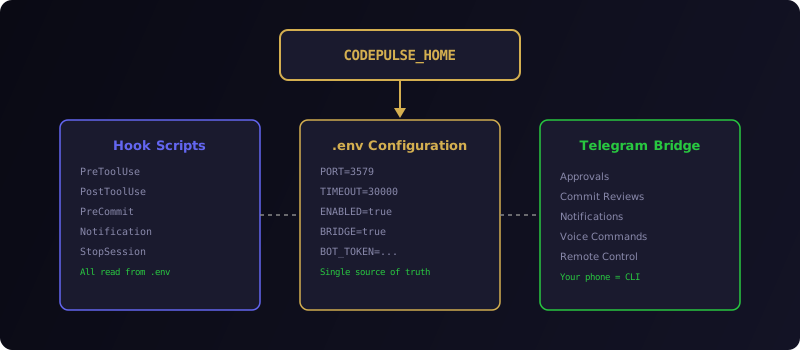
Traditional developer tool installers scatter configuration across multiple files, registry keys, and PATH entries. CodePulse takes a radically simpler approach: one environment variable bridges the entire system.
CODEPULSE_HOME points to your CodePulse installation directory. Every hook script reads this variable at runtime to find the .env configuration file. The .env file contains every setting CodePulse needs — port, timeout, enabled flags, Telegram bot token — in a single, human-readable location.
This architecture has three important consequences:
- Nothing is hardcoded — move CodePulse to a different directory and just update
CODEPULSE_HOME - Everything is runtime-configurable — change the port or toggle features by editing
.env, no reinstall needed - Fail-open safety — if
CODEPULSE_HOMEis not set or the server is down, hooks exit silently and Claude Code works normally
That last point is critical. CodePulse never blocks your development workflow. If the approval server is not running, Claude Code behaves exactly as it would without CodePulse installed. Your AI coding assistant is never frozen because of a configuration issue.
What the Installer Actually Does Under the Hood
Behind the friendly wizard UI, the installer runs five PowerShell scripts in sequence. Each one is a self-contained module that can also run independently for advanced users who prefer CLI-based deployment.
- Claude Code detection (
detect-claude.ps1) — locates the CLI binary and.claudesettings directory - Hook placement (
place-hooks.ps1) — copies universal hook scripts to%USERPROFILE%\.claude\hooks\ - Settings registration (
register-hooks.ps1) — adds seven hook events to Claude Code'ssettings.json - Environment setup (
set-codepulse-home.ps1) — sets theCODEPULSE_HOMEsystem or user variable - Post-install validation — verifies hooks are registered and responding
Each script is idempotent. Running the installer twice does not create duplicate hooks or corrupt settings. This is especially important for the upgrade scenario — when CodePulse detects an existing installation, it updates in place without touching your personal configuration.
The Approval Bridge: Your Workflow After Installation
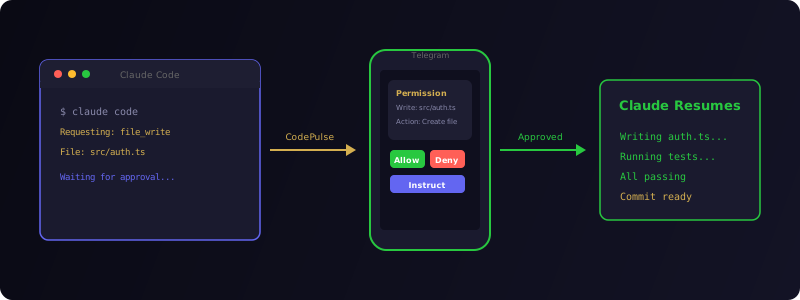
Here is the part that changes how you work with Claude Code. After installation, every permission request that Claude Code generates — file edits, bash commands, tool calls — gets routed through Telegram instead of the terminal.
When you are at your desk, you will see approval cards appear in your Telegram chat with Allow, Deny, and Instruct buttons. Tap Allow and Claude continues instantly. Tap Instruct to modify what Claude does before granting permission. This works the same whether you are sitting at your computer or walking your dog three miles away.
The installer displays a clear warning after setup if the approval bridge is enabled:
Permission prompts have moved to Telegram. Claude Code will no longer ask for approval in the terminal. Make sure your CodePulse bot is running and Telegram notifications are on. If the bot is offline, approvals auto-allow and Claude works normally.
This is a deliberate design choice. We do not hide the workflow change behind a settings page. The first time you see it should be right after installation, with clear instructions on what to expect.
Silent Installation for Teams
Need to deploy CodePulse across multiple machines without clicking through a wizard eight times? The installer supports unattended mode:
CodePulse-Setup.exe /S
That single flag runs the entire installation silently with default settings. Combined with a pre-configured .env file dropped into the installation directory, you can automate CodePulse deployment across an entire team with a single script.
What Comes Next
The Windows installer is live today. You can download it now and be up and running in under two minutes.
On the roadmap:
- Linux and macOS installers — the same zero-config approach as interactive terminal prompts instead of a GUI wizard
- Auto-updater — check for new versions from the system tray and update in place
- Settings panel — a GUI for managing hooks, license, and preferences without touching config files
We are building CodePulse to be the easiest way to control Claude Code from your phone. The installer is the first thing you experience, and we believe first impressions should be effortless.
Ready to try it? Download CodePulse for Windows — free plan, no account required.