Claude Code is powerful. It reads files, writes code, runs shell commands, installs packages, and commits to your repo. That power comes with a question every developer asks within the first five minutes: who is approving all of this?
By default, Claude Code shows permission prompts in your terminal. You sit at your desk, watch the requests scroll by, and tap "y" dozens of times per session. It works — until you step away. The moment you leave your terminal, Claude stops. Every pending permission blocks the entire session. Your AI agent, capable of autonomous multi-file refactors, sits idle because it needs you to press a single key.
CodePulse moves that approval flow to Telegram. But it does not just forward prompts to your phone. It routes every action through a 7-step approval pipeline that evaluates, batches, learns, and adapts — so that by the end of your first session, most routine actions approve themselves while sensitive operations always require your explicit tap.
No other tool in the Claude Code ecosystem does this. Competitors offer binary Allow/Deny buttons. CodePulse offers an engine that gets smarter the longer you use it.
The Problem: 30-50 Permission Prompts Per Session
A typical Claude Code session generates between 30 and 50 permission requests. Read a config file — permission. Edit a component — permission. Run the test suite — permission. Grep for imports — permission. Every tool invocation is a blocking prompt.
Most of these are routine. You will always approve file reads. You will always approve edits to files you just asked Claude to modify. You will almost always approve test runs. The signal-to-noise ratio is terrible — the three dangerous actions are buried under forty-seven safe ones.
This is the core problem the approval pipeline solves. Not by removing permissions, but by learning which ones you always approve and handling them automatically — while making sure the dangerous ones always reach your phone.
The 7 Steps, Explained
When Claude Code attempts any action — reading a file, editing code, running a shell command — the request enters the CodePulse approval pipeline. Here is what happens at each step.
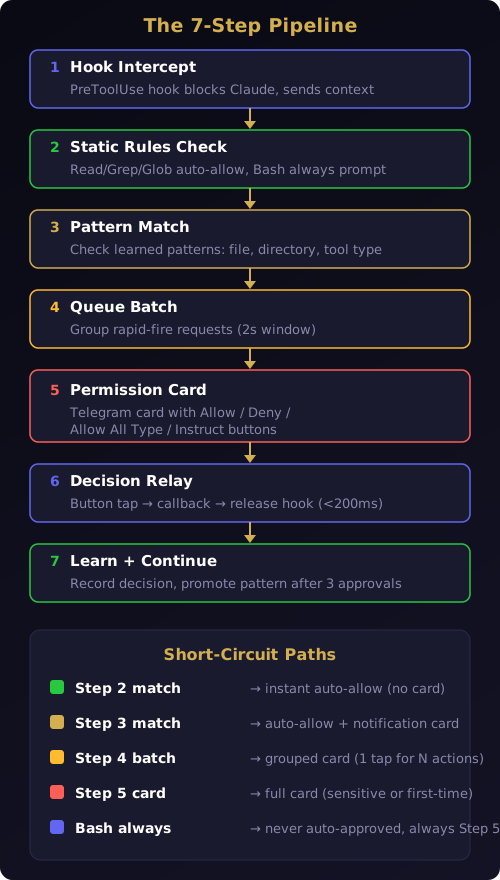
Step 1: Hook Intercept
Claude Code fires a PreToolUse hook before every tool invocation. CodePulse intercepts this hook and blocks execution. Claude cannot proceed until the pipeline returns a decision. The hook sends the full request context — tool name, file path, command string, diff stats — to the local approval server.
Step 2: Static Rules Check
Before anything reaches your phone, the pipeline checks static rules. These are hardcoded safety defaults that ship with CodePulse:
- Auto-allow:
Read,Grep,Glob— read-only tools that cannot modify your system - Always prompt:
Bash— shell commands always require explicit approval, no exceptions - Project overrides: Custom rules from your
.codepulse/config that add or remove tools from auto-allow
If the static rules produce a decision, the pipeline short-circuits. The action is allowed (or denied) instantly, and a compact notification card appears in Telegram so you know what happened — but no buttons, no waiting.
Step 3: Pattern Match
This is where the pipeline gets intelligent. The learning engine maintains a list of patterns you have approved during this session. It checks the incoming request against three levels of learned patterns:
- Exact file — You approved editing
src/utils/helpers.tsthree times already - Directory glob — You approved edits to three different files in
src/utils/→ the patternsrc/utils/*is now trusted - Tool type — You approved five edits across the codebase → all
Editactions are now trusted
If a learned pattern matches, the action auto-approves instantly. A notification card appears in Telegram with a footer showing which pattern matched and a link to revoke it.
Step 4: Queue Batch
Claude Code can fire three to five tool calls in rapid succession — reading multiple files, editing several components, or running parallel operations. Sending five separate Telegram cards would flood your chat and force you to tap five times for what is conceptually one operation.
The queue batches rapid-fire requests. When the first request arrives with no matching rule, the pipeline starts a 2-second window. Any additional requests within that window are grouped into a single batch card.
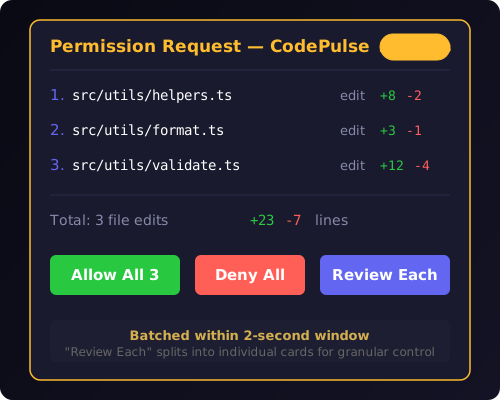
The batch card shows all pending actions with file paths and diff stats. Three buttons: Allow All, Deny All, and Review Each. If you tap Review Each, the batch splits into individual cards for granular control.
Step 5: Permission Card
If the request is not batched (or the batch window closes with a single request), the pipeline renders a full permission card in Telegram. The card contains:
- Tool name — what Claude wants to do (Edit, Bash, Write, etc.)
- File path — which file is affected
- Change summary — lines added and removed (+N/-N)
- Context — the actual command or a preview of the change
Below the card, an inline keyboard with four buttons:
- Allow — approve this specific action
- Deny — block this action, Claude tries an alternative
- Allow All Type — approve this action AND all future actions of the same type in this session
- Instruct — deny with a reason (more on this in Step 7)
Step 6: Decision Relay
You tap a button. The Telegram callback fires instantly. The bot's callback handler looks up the pending request by ID, packages the decision into a hook-compatible response, and sends it back to the local approval server. The server releases the waiting HTTP connection. The hook returns the decision to Claude Code. Claude continues — or pivots, if denied.
The entire round-trip from button tap to Claude resuming takes under 200 milliseconds on a typical connection. You feel no lag. Claude feels no lag.
Step 7: Learn + Continue
After every decision, the learning engine records the outcome. If you approved this tool + path combination, the approval counter increments. Once you hit the learning threshold (default: 3 consecutive approvals of the same pattern), the engine promotes the pattern to auto-approve.
The next time Claude requests the same action, it skips Steps 4-6 entirely. A notification card appears confirming the auto-approval, and Claude continues without waiting.
This is the pipeline's core loop: ask, learn, stop asking. By the middle of a session, most routine operations flow through automatically while novel or sensitive actions still require your tap.
How Pattern Learning Actually Works
The learning engine is the heart of the pipeline. It tracks your approval history and promotes patterns through three granularity levels.
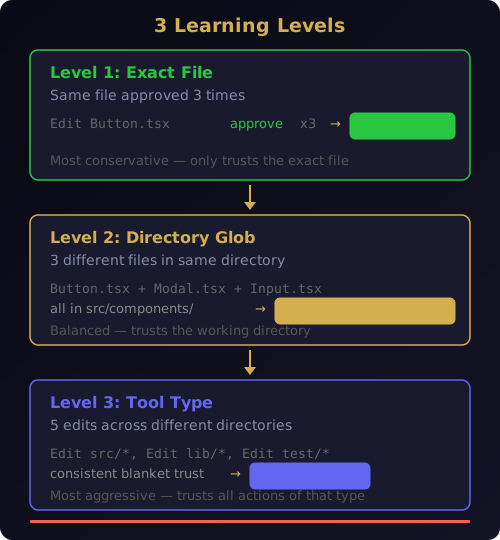
Level 1: Exact File
You approve editing src/components/Button.tsx three times. The engine creates a pattern: Edit:src/components/Button.tsx → auto-approve. The next edit to that exact file skips the prompt.
This is the most conservative level. It only trusts the specific file you have repeatedly approved.
Level 2: Directory Glob
You approve edits to Button.tsx, Modal.tsx, and Input.tsx — all in src/components/. The engine detects the directory pattern and promotes: Edit:src/components/* → auto-approve. Any edit to any file in that directory now auto-approves.
This level kicks in when you are working across multiple files in the same directory, which is exactly what happens during a refactor or feature implementation.
Level 3: Tool Type
You approve five edit operations across different directories. The engine recognizes that you are consistently approving all edits and promotes: Edit:* → auto-approve. All file edits anywhere in the project now auto-approve for the rest of the session.
This is the most aggressive level. It activates only when you have demonstrated a clear pattern of blanket trust for a tool type.
What Never Auto-Approves
The Bash tool is permanently excluded from pattern learning. Shell commands can do anything — delete files, install packages, modify system configuration, exfiltrate data. No amount of consecutive approvals will make Bash auto-approve. Every shell command always reaches your phone.
This is a deliberate design choice. The pipeline learns trust for structured, scoped tools (Read, Edit, Write, Glob, Grep) but never for unstructured, unbounded tools. You can override this in configuration, but the default is intentionally conservative.
Session Scoping
All learned patterns are stored in memory and wiped when the Claude Code session ends. Nothing persists between sessions. Every new session starts fresh with zero learned patterns.
This prevents stale trust. The project you worked on yesterday might have different safety requirements than today's task. Session scoping means the pipeline re-learns your preferences every time, which takes about five minutes of normal work.
The Instruct Button: Deny With a Voice
Binary Allow/Deny decisions cover most cases. But sometimes you want to say something more nuanced than "no."
Claude wants to run rm -rf dist/. You do not want to allow it — but you also do not want Claude to give up on the task. You want to say: "Don't delete dist. Just clean the cache folder."
That is what the Instruct button does. It appears on every approval card as a fourth option. When you tap it, the card transforms into a text input prompt showing what Claude wants to do. You type your instruction — free text, in plain English — and send it.
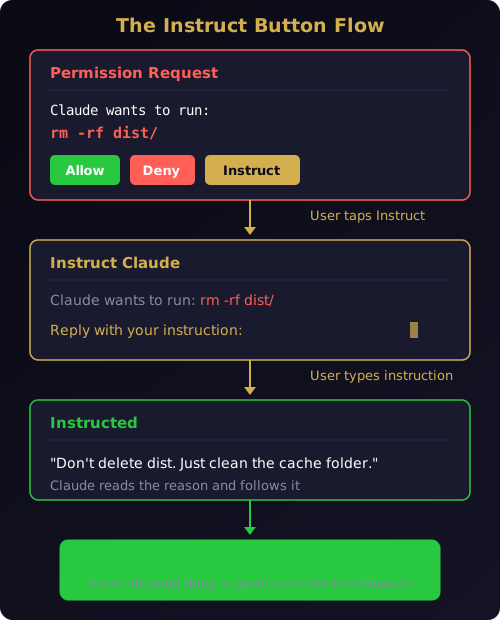
The pipeline packages your instruction as a deny with a permissionDecisionReason. Claude reads the reason, abandons the original action, and follows your instruction instead. The card edits in place to show what you instructed, so you have a record of the exchange.
This turns the approval flow from a gate into a conversation. You are not just approving or blocking — you are steering. The Instruct button is the difference between a tool that asks for permission and a tool that listens to direction.
Some examples of real Instruct messages:
- "Write it, but add input validation first"
- "Use fetch instead, no new dependencies"
- "Don't modify that file — update the test file instead"
- "Run the tests but skip the integration suite"
Each one would require a separate Claude conversation without the Instruct button. With it, you redirect Claude's behavior in a single tap and a short message.
Batch Mode: Taming the Rapid-Fire Problem
Claude Code's parallel tool execution creates a unique UX challenge. When Claude decides to read five files simultaneously, the approval server receives five requests within milliseconds. Without batching, your Telegram chat fills with five identical-looking cards.
The request queue solves this with a batching window. When the first request arrives in an empty queue, a 2-second timer starts. Every request that arrives before the timer expires joins the batch. When the timer fires, the queue renders a single grouped card.
The batch card displays all pending actions in a compact list format:
Permission Request — CodePulse (3 actions)
───────────────────────────
src/utils/helpers.ts — edit +8/-2
src/utils/format.ts  — edit +3/-1
src/utils/validate.ts — edit +12/-4
Three buttons: Allow All 3, Deny All, Review Each.
Allow All and Deny All apply the same decision to every request in the batch. Review Each splits the batch into individual cards — useful when you want to approve most actions but deny one.
Batching reduces notification noise by 60-70% in a typical session. Instead of forty individual cards, you see fifteen batches and a few individual prompts for unique operations.
The Approval Server: How It All Connects
The pipeline needs a bridge between Claude Code's hook system and the Telegram bot. That bridge is the approval server — a tiny localhost-only HTTP server that runs on port 47700.
Two endpoints handle everything:
POST /approval/request— The hook sends permission details and the connection stays open until the user responds or a timeout expiresPOST /approval/respond— The Telegram callback sends the decision, which releases the waiting connection
This is a long-polling pattern. No WebSockets, no external dependencies, no network exposure. The server binds exclusively to localhost — it is physically impossible to reach it from another machine.
The timeout defaults to 120 seconds. If you do not respond within two minutes, the request auto-denies (configurable to auto-allow if you prefer). This prevents Claude from hanging indefinitely if you get distracted.
Configuration: Making It Yours
Every aspect of the approval pipeline is configurable through environment variables:
# Core settings
APPROVAL_ENABLED=true
APPROVAL_PORT=47700
APPROVAL_TIMEOUT=120
APPROVAL_TIMEOUT_ACTION=deny

# Static rules
APPROVAL_AUTO_ALLOW=read,grep,glob

# Learning engine
APPROVAL_LEARN_ENABLED=true
APPROVAL_LEARN_THRESHOLD=3
APPROVAL_LEARN_SCOPE=directory
APPROVAL_LEARN_SENSITIVE=bash
The APPROVAL_LEARN_SCOPE setting controls how aggressively the engine generalizes. Set it to exact for maximum caution (only exact file matches), directory for balanced behavior (the default), or tool for maximum autonomy (fastest path to full auto-approval).
The APPROVAL_LEARN_SENSITIVE setting lists tools that are permanently excluded from learning. The default is bash — add others if your project has tools that should always require manual approval.
Three Slash Commands for Control
Once patterns start accumulating, you need visibility and control. Three commands manage the learning engine from Telegram:
/approval-rules— Lists all active auto-approve patterns with their trigger count and scope/approval-pause— Pauses learning and returns to full manual mode (existing patterns remain active)/approval-revoke edit:src/*— Revokes a specific pattern, returning those actions to manual approval
These commands give you a safety valve. If the engine learns a pattern you are uncomfortable with, one command removes it. If you want full manual control for a sensitive operation, one command pauses learning without losing your accumulated patterns.
Why This Architecture Matters
The approval pipeline is not just a feature — it is the reason CodePulse works as a daily tool rather than a novelty. Without it, remote approval is a worse experience than sitting at your terminal. With it, remote approval becomes a better experience.
The terminal shows you one prompt at a time with no context and no memory. The pipeline shows you batched requests with file stats, remembers what you approved, stops asking about routine operations, and gives you the Instruct button to redirect Claude when a simple Allow or Deny is not enough.
That is the difference between forwarding prompts and building an engine. CodePulse does not just move your approval flow to Telegram. It makes the approval flow intelligent.
Ready to approve Claude Code from your phone? Download CodePulse and experience the 7-step approval pipeline in your first session. The free tier includes the full approval flow — Premium adds AI commit review, Genius Supervisor, and voice input.