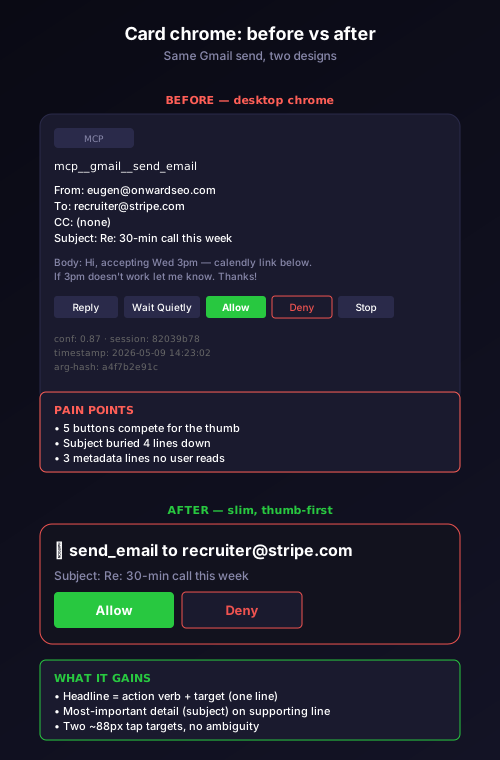
You ask Claude to send an email to your recruiter accepting Wednesday at 3pm. Claude composes the draft. The bot pops an approval card in your Telegram thread. You glance at it on your phone — you're in a coffee line with thirty seconds before you order. The card has eight rows. Subject line. To. From. Body preview. Three buttons. Two metadata pills. A timestamp footer. Your eyes can't find the Allow button on the first scan. By the time you've parsed the card, the line has moved and the barista is staring at you.
This was the user-experience problem we shipped Real-life Mode with for about three weeks. The approval cards we used were the same ones that worked great for code reviews on the desktop, but they made conversational AI on a phone feel like operating a console in a moving vehicle. This is the story of how we redesigned them, what we cut, and why "less chrome" became the design principle that made everything else click.
The original card was designed for a different reader
Code-mode approval cards evolved over the eighteen months CodePulse spent being a code-only tool. Every element earned its spot for a real reason. The file path tells you which file Claude is about to edit. The line numbers tell you where in the file. The [Reply] button lets you redirect Claude with mid-action feedback. The [Wait Quietly] button suppresses subsequent stop-cards in the same chain. The [Stop] button kills the agent. The metadata pills show tool name, target type, and confidence score.
For someone reviewing a long-running coding agent on a desktop monitor, every one of those affordances pulls weight. You're sitting at a screen, the cards arrive at human reading speed, you have time to parse the entire interface and pick the action that matches your intent. The chrome isn't decoration; it's a control surface for the supervision task you're actually doing.
For someone tapping at a Telegram chat on a phone in a coffee line, none of those affordances pull weight. You don't need [Reply] because you can just send a follow-up message. You don't need [Wait Quietly] because the next stop-card isn't coming — Real-life is request/response, not long-running. You don't need [Stop] because there's nothing to stop; the email is either sent or it isn't. You don't need the file path, the line numbers, or the confidence score because none of them apply to a Gmail draft.
What you need is two pieces of information rendered as fast as the human eye can catch them: what is about to happen, and where. Then you need a tap target large enough that your thumb hits it on the first try. Everything else is noise.
The redesign principle: minimum viable chrome
We started by deleting every UI element and asking what was load-bearing. The answer turned out to be five things: an icon (so the eye can lock onto card-type at a glance), an action verb plus target (the headline), one supporting line of metadata (the most important detail), the Allow button, and the Deny button. That's it.
Everything else came back only if it could justify itself against the question "does this help the user decide on a phone in five seconds?" Most things couldn't.
The action verb plus target became the new headline. For a Gmail send, that's 📨 send_email to [email protected]. For a calendar create, it's 📅 create_event "TAB review" Wed 3pm. For a Linear comment save, it's ✏️ save_comment on TAB-624. The format is consistent: emoji icon for visual landmark, snake_case tool name for technical clarity, the most identifying argument inline.
The supporting line is the most-important-detail rule. For a send_email, that's the subject line. For create_event, the attendees and time. For save_comment, the first sentence of the comment text. We pick exactly one detail per tool family — never two — because the moment you have two, you've started building the old card again.
The buttons are two: green Allow on the left, red Deny outline on the right. Tap targets are wide enough for thumbs (88 pixels minimum on most phones), with explicit text labels (no icon-only buttons). Each button is one tap, not a tap-then-confirm. There is no "confirm dangerous action" double-tap — we considered it and decided it was the wrong friction. If a tap is dangerous, the card shouldn't be auto-approve in the first place. The friction belongs in the classifier, not in the button.
Three card variants for three trust contexts
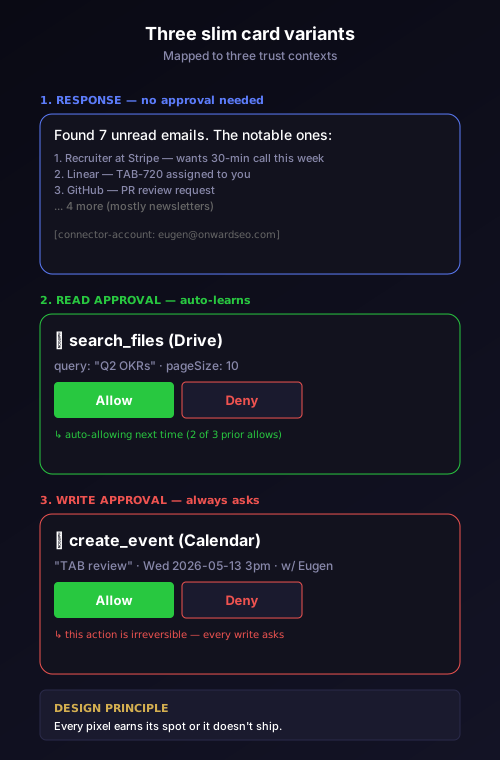
The slim card design has three variants. Each maps to a different trust context that the read/write classifier defines.
The response card. Claude has finished and is responding to you. No approval needed; the action already happened (or didn't, in the case of a Deny). The card shows the response text as the body, with a small footer showing which connector account the answer came from (so you can tell at a glance whether Claude pulled the answer from your work Gmail vs your personal Gmail). No buttons.
The read-approval card. Claude wants to call a read-only MCP tool. The card shows the action verb, target, and supporting line. Buttons are Allow and Deny. The card also shows a small "this is auto-approving (3 of 3 prior allows)" footer when the per-topic policy is about to skip the prompt entirely on the next call — that's not a button, just a transparency signal so the user understands why subsequent reads aren't asking.
The write-approval card. Claude wants to call an irreversible MCP tool — send_email, create_event, post_message, save_issue. The card shows the action, target, and the most important payload preview. Buttons are Allow and Deny. There is never a footer showing auto-approval state, because writes never auto-approve. Every write asks every time. The card also shows a small "this action is irreversible" hint to remind the user that a Deny here is the only out.
Why the icons matter more than they look
The emoji icon at the start of each card seems decorative. It isn't. It's the fastest visual landmark the human eye can lock onto, and on Telegram's chat surface — where every message is bordered by the same gray bubble at the same width — that landmark is what lets you scroll past five cards and land on the one that's actually for you.
We use a small, deliberate icon vocabulary. 📨 for Gmail send, 📅 for Calendar create, 📂 for Drive read, 🔧 for code edits, ✏️ for any write that produces a comment or text artifact. The vocabulary stays small (under a dozen icons total) because too many icons creates the opposite problem: visual noise instead of visual landmarks. The same icons appear in toast notifications and inline previews, so the user develops muscle memory.
The icons are also functional fallbacks for situations where the action verb is ambiguous. save_comment could be a Linear comment, a GitHub PR review comment, a Drive document comment, or an internal CodePulse comment. The icon disambiguates: ✏️ for Linear, 💬 for GitHub, 📂 for Drive, 🔔 for CodePulse. The user knows where the action is going to land before they read the second word of the headline.
What we cut and why
A list of every element we removed from the original card design and the reason each one didn't make the slim cut:
File path / line number. Doesn't apply to MCP operations. Real-life tools don't operate on files; they operate on records (emails, events, issues). A file-path slot would be either misleading or empty.
Tool category pill ("MCP", "Bash", "Read"). The icon already conveys this. Two visual signals for one piece of information is one too many.
Confidence score percentage. Studied user behavior on the cards that had it: nobody read it. The confidence number was a designer's nicety, not a user's tool. Cut.
Argument signature hash. Useful for debugging when two seemingly-identical calls were getting different routings. Not useful for a user making a decision in five seconds. Moved to the developer log.
[Reply] button. Lets the user redirect Claude with mid-action feedback. In Code mode, valuable for long-running orchestration. In Real-life, the user just sends another message — Telegram already has a perfectly good text input. Cut.
[Wait Quietly] button. Suppresses subsequent stop-cards in the same chain. In Real-life, the chain is one step long (the response). No subsequent cards to suppress. Cut.
[Stop] button. Kills the agent. In Real-life, the agent is a stateless request/response — there's nothing to kill. Cut. (We left it in the changelog where it belongs.)
Card timestamp footer. Telegram already shows message timestamps. Two timestamps is one too many.
"Approval card from session 82039b78-..." metadata. Dev-side useful, user-side noise. Moved to the support log for when we're triaging an issue.
The cut list above came out of two weeks of usability studies on the original cards. We watched users on phones approve and deny cards, recorded their eye movements (informally — by asking them what they looked at first, second, third), and asked them to identify the most important piece of information on each card. The list of what they ignored was much longer than the list of what they used.
How the cards interact with the policy engine
A subtle thing happens between card design and approval engine. The user sees a slim card. They tap Allow. The engine records that decision. But what does it record exactly?
Pre-redesign, the engine recorded the full card payload — every metadata field — as the pattern key. That meant a tiny variation in the metadata (a different timestamp, a different session ID) would create a new pattern, and the user would never accumulate enough confirmations to trigger auto-approval. Auto-allow was effectively broken.
The slim cards forced us to fix that. The pattern key is now derived from the action verb, the tool name, and the target argument — exactly the things shown in the slim card. Other metadata is recorded for diagnostic purposes but doesn't enter the pattern key. So the user's three Allow taps for list_emails against their work Gmail account all map to the same pattern, and the auto-approval mechanism actually fires.
This is the kind of cross-layer coupling between UI design and engine design that you only catch by building both at once. The slim card design wasn't just about pixels; it forced us to be intentional about what counts as "the same approval" semantically.
What we'd change next
Two things still feel like they could be slimmer.
The "this action is irreversible" hint on write cards. Right now it's text that takes up half a line. We've thought about replacing it with a single icon (🔒) inline with the action verb. The argument against is that some users wouldn't recognize the lock icon as meaning "irreversible," especially in a multi-language context. We're A/B-testing both before committing.
The auto-approval footer on read cards. Some users have told us the footer feels redundant with the toast notification that fires when the next read auto-approves. Maybe just the toast is enough, and the card footer can go. We're collecting more data on this before deciding.
Beyond those, the bigger UX waves still ahead are edit-via-reply (Wave 2 — reply to a card to amend the draft instead of denying and re-prompting) and the confidence score + batch approvals + pre-flight tool count for Wave 3. Each of those will refine the slim cards further. The principle stays the same: every pixel earns its spot, or it doesn't ship.
The takeaway
If you're designing for AI-driven approvals on a phone, start by deleting everything. Add back only what survives the question: does this help the user decide in five seconds with their thumb? You'll be surprised how much of the desktop chrome doesn't survive.
The slim cards are CodePulse's answer for Real-life Mode. They aren't the right answer for Code mode's long-running supervision, where the desktop chrome earns its keep. They are the right answer for conversational AI in a chat thread, on a device that's in your hand for fifteen seconds at a time. We'd rather have you tap Allow with confidence in three seconds than parse a beautiful interface for ten.
Ready to see what slim cards look like in your own Telegram thread? Download CodePulse and tap /select → Real-life. Send your first message and the slim approval card lands within a second. The free tier includes the full Real-life Mode UI. Upgrade to Premium for AI commit review, voice input, and the rest of the platform.