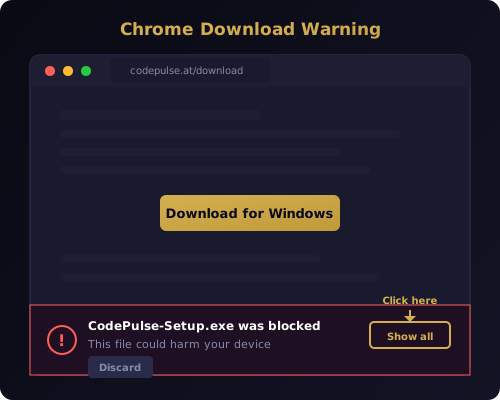
You click the download button. Chrome immediately blocks it. A red warning appears at the bottom of your screen telling you the file "could harm your device." Your first instinct is to close the tab and forget about it.
That reaction is exactly what Chrome intends. The browser is doing its job, protecting you from unverified software. But in this case, the warning is a false alarm. CodePulse is safe, open source, and built by a team that takes security seriously. The warning appears for a specific, fixable reason that has nothing to do with malware.
This guide explains why Chrome flags the download, why you can trust CodePulse, and how to complete the download in three extra clicks.
Why Chrome Blocks the CodePulse Download
Chrome uses a system called Safe Browsing to evaluate every file you download. When you click a download link, Chrome checks the file against a database of known threats, analyzes its characteristics, and makes a trust decision before allowing it to reach your disk.
One of the most important factors in that trust decision is whether the file has been digitally signed with a code signing certificate. A code signing certificate is a cryptographic credential issued by a Certificate Authority (like DigiCert, Sectigo, or GlobalSign) that verifies the identity of the software publisher. When you download a signed executable, Chrome can confirm that the file was produced by a known entity and has not been tampered with since it was signed.
CodePulse does not yet have a code signing certificate. That is the sole reason Chrome blocks the download.
What Code Signing Certificates Cost
Code signing certificates are not free. A standard code signing certificate costs between 300 and 500 dollars per year. An Extended Validation (EV) certificate, which provides the highest level of trust and immediately builds reputation with SmartScreen, costs 400 dollars or more per year.
For a venture-backed company shipping enterprise software, that cost is trivial. For a bootstrapped indie project like CodePulse, it is a meaningful expense that we plan to address as the project grows toward sustainability. We are transparent about this tradeoff: we chose to invest our limited budget into building features like the approval pipeline and AI commit review rather than purchasing a certificate before the project has revenue to sustain it.
How Code Signing Works Under the Hood
When a developer signs an executable, the process creates a cryptographic hash of the file contents and encrypts that hash with the developer's private key. The encrypted hash, along with the certificate chain linking back to a trusted Certificate Authority, is embedded into the executable.
When Chrome downloads the file, it extracts the signature, decrypts the hash using the developer's public key, and compares it to a freshly computed hash of the file. If the hashes match and the certificate chain is valid, Chrome knows two things: the publisher is who they claim to be, and the file has not been modified since signing.
Without a signature, Chrome has no way to verify either of those things. It cannot confirm the publisher's identity or detect tampering. So it falls back to its default behavior: block the download and warn the user.
This is a reasonable default. Most unsigned executables on the internet are genuinely dangerous. But CodePulse falls into a narrow category of legitimate software that is unsigned only because of budget constraints, not because it has something to hide.
Why CodePulse Is Safe to Download
Trust should not depend on a certificate alone. Certificates verify identity, but they do not guarantee that software is safe. Plenty of signed applications contain telemetry, adware, or questionable data practices. The real question is: can you verify what the software does?
With CodePulse, you can.
Built in the Open on GitHub
CodePulse is developed on GitHub. While the repository is currently private, we use GitHub as our primary development platform with full version history, issue tracking, and release management. As the project matures, we plan to open the source for public audit.
In the meantime, every release is built from a tagged commit in that repository. The installer script, the Tauri launcher, and the service binary are all produced from the same tracked codebase. Nothing ships that is not in version control.
Local-First Architecture
CodePulse follows a strict local-first architecture that keeps all your data on your machine. Session logs, approval patterns, commit diffs, and configuration files are stored as JSONL files on your local disk. Nothing is synced to a cloud database. Nothing is uploaded to our servers.
The only network calls CodePulse makes are to the Telegram Bot API (to send and receive messages from your personal bot) and an optional license validation endpoint for Premium users. Both of these are initiated by you and are fully documented in the source code.
Built With Industry-Standard Tools
The CodePulse desktop application is built with Tauri, a Rust-based framework for building lightweight desktop apps. Tauri is memory-safe by design and produces significantly smaller binaries than Electron-based alternatives. The installer is built with NSIS (Nullsoft Scriptable Install System), the same installer framework used by thousands of open-source projects including VLC, Notepad++, and 7-Zip.
Neither component is exotic or unvetted. Both are widely trusted in the open-source ecosystem.
No Data Collection
CodePulse does not phone home. There is no telemetry, no analytics, no crash reporting, and no usage tracking. We do not collect any data about how you use the tool. The only information that leaves your machine is what you explicitly send through Telegram, and that goes directly from your machine to the Telegram API, not through any CodePulse server.
This is a deliberate architectural choice we made when we first started building CodePulse. Privacy is not a feature we bolt on later. It is a constraint we design around from day one.
Step-by-Step Download Guide for Chrome
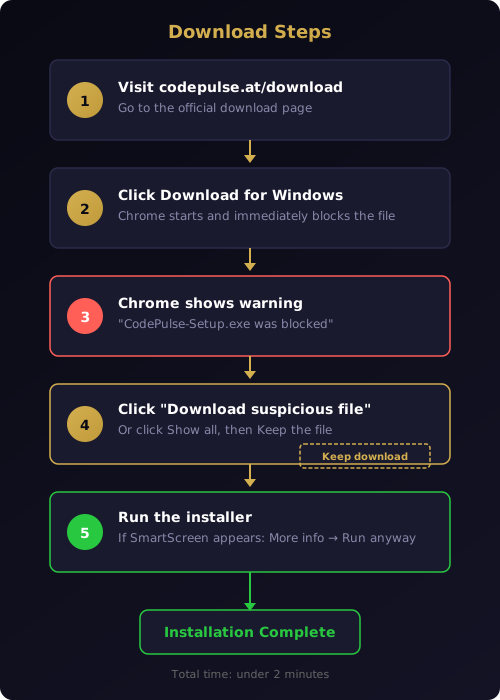
The download process takes about thirty seconds once you know which buttons to click. Here is the exact sequence.
Step 1: Visit the Download Page
Go to the CodePulse download page and click the Download for Windows button. Chrome will start downloading CodePulse-Setup.exe and then immediately pause or block it.
Step 2: Find the Blocked Download
Chrome shows a warning in the downloads bar at the bottom of the browser window. The message reads something like "CodePulse-Setup.exe was blocked because it could harm your device" or "Suspicious download blocked." The exact wording varies between Chrome versions.
Do not click Discard. The file is safe.
Step 3: Open the Download Options
Look for a small upward arrow or caret button next to the blocked download notification. In newer versions of Chrome, you may need to click Show all in the downloads bar to reveal the full list of recent downloads. You can also press Ctrl+J to open the downloads page directly.
Step 4: Keep the File
On the downloads page or in the expanded notification, you will see an option labeled Download suspicious file or Keep. Click it. Chrome will ask you to confirm. Confirm the action.
The file will now download to your default downloads folder, usually C:\Users\<YourName>\Downloads\.
Step 5: Handle Windows SmartScreen
When you double-click the downloaded installer, Windows SmartScreen may show a second warning: "Windows protected your PC." This is a separate protection layer from Chrome's Safe Browsing.
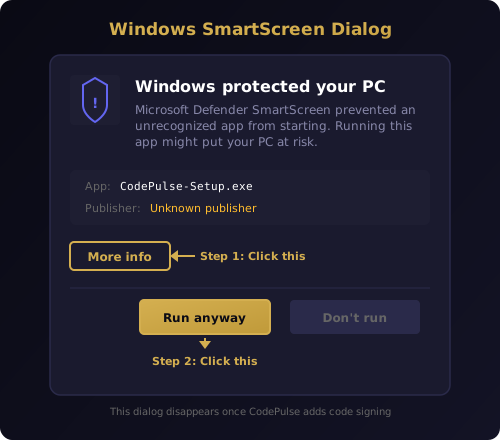
Click More info at the bottom of the dialog. This reveals a Run anyway button. Click Run anyway to launch the installer.
SmartScreen shows this warning for the same reason Chrome does: the executable is not signed with a recognized certificate. Once we add code signing, both warnings will disappear automatically.
Download Steps for Firefox and Edge
Chrome is not the only browser that flags unsigned downloads. Here is what to expect in other browsers.
Firefox
Firefox takes a slightly less aggressive approach. When you download CodePulse-Setup.exe, Firefox may show a warning dialog saying the file "may harm your computer." Click Keep or Allow download to proceed. The file will appear in your downloads list as normal.
Firefox does not block the download by default in most configurations. If you have enhanced tracking protection set to Strict mode, you may see an additional confirmation step. The process is the same: confirm that you want to keep the file.
Microsoft Edge
Edge uses the same SmartScreen technology as Windows itself. When you download CodePulse, Edge may show a flyout warning that says "CodePulse-Setup.exe was blocked because it could harm your device."
Click the three-dot menu on the blocked download and select Keep. Edge will show a second confirmation asking if you trust the file. Select Keep anyway to complete the download.
After downloading, the Windows SmartScreen dialog may still appear when you run the installer. Follow the same steps described in Step 5 above: click More info, then Run anyway.
What Happens After You Download
Once you get past the browser warnings, the installation itself is straightforward. The zero-config installer handles everything automatically.
The setup wizard walks you through nine screens. Most users click Next on every screen without changing a setting. The installer automatically detects your Claude Code installation, configures the hook system, sets up environment variables, and registers CodePulse as a Windows service.
The entire process takes under two minutes. When it finishes, CodePulse is running in the background and ready to connect to your Telegram bot. If you need help with the initial setup after installation, the getting started guide walks you through connecting your Telegram bot, configuring your first project, and sending your first command.
What the Installer Does Not Do
The installer does not install browser extensions, modify your browser settings, add toolbars, or inject itself into other applications. It does not require administrator privileges beyond what Windows needs to create a system service. It does not add startup entries beyond the service registration. And it does not contact any server during installation except for optional license validation if you enter a license key.
If you want to understand exactly what the installer configures, the NSIS script that builds it is available in the GitHub repository. Every registry key, file copy, and service registration is defined in that script.
Verifying Your Download Manually
If you want extra assurance that the file you downloaded is authentic, there are several verification steps you can take.
Check the File Hash
Every release of CodePulse is built from a specific commit in the GitHub repository. You can compute the SHA-256 hash of the downloaded installer and compare it against the hash published in the release notes.
On Windows, open PowerShell and run:
Get-FileHash .\CodePulse-Setup.exe -Algorithm SHA256
Compare the output hash against the value listed on the download page. If they match, the file is identical to what we published.
Review the Source Code
The CodePulse source code is public. You can clone the repository, read the code, and even build the application yourself from source. The build process uses standard tools: Bun for the TypeScript service, NSIS for the Windows installer, and Tauri for the desktop application.
Building from source is the ultimate verification. If you can produce an identical binary from the published source code, you have cryptographic proof that the distributed binary matches the source.
Check the Download URL
Always download CodePulse from the official source. The canonical download URL is https://downloads.codepulse.at/CodePulse-Setup.exe, served through Cloudflare's global CDN. The download page links directly to this URL.
Do not download CodePulse from third-party download sites, mirror sites, or links shared in unverified forums. We do not distribute CodePulse through any third-party download aggregator.
Our Commitment to Code Signing
We are fully committed to adding code signing to the CodePulse installer. This is not a permanent situation. It is a temporary tradeoff driven by budget constraints that will be resolved as the project grows.
Here is our plan. Once CodePulse reaches a sustainable number of Premium subscribers, purchasing a code signing certificate becomes our top priority for distribution improvements. An EV certificate will eliminate both the Chrome Safe Browsing warning and the Windows SmartScreen dialog in a single step.
Until then, we are taking every other step we can to establish trust. The codebase is open source. The architecture is local-first. The build process is transparent. And every release is published from a verified GitHub repository.
We understand that asking users to click through security warnings is not ideal. We appreciate your patience and your trust. If you have any concerns about the download process, review the source code on GitHub, or reach out to us through the contact page.
Frequently Asked Questions About the Download Warning
Does the Chrome warning mean CodePulse contains malware? No. The warning means the file is not digitally signed, which prevents Chrome from verifying the publisher's identity. It does not indicate that Chrome detected malicious code in the file.
Will my antivirus flag CodePulse? Some antivirus programs flag unsigned executables as potentially unwanted programs (PUPs). This is a heuristic detection based on the absence of a signature, not on the presence of malicious code. You may need to add an exception in your antivirus software. The specific steps vary by antivirus vendor.
Is the free tier affected by this? No. The download is the same file regardless of whether you use the free tier or Premium. The features available in the free tier work identically once installed.
Will the warning go away eventually? Yes. Once we purchase a code signing certificate and sign the installer, both Chrome and Windows will recognize it as trusted software. The warnings will disappear completely for all future downloads.
Can I install CodePulse without downloading an exe? CodePulse can also be run from source by cloning the GitHub repository and building locally. This bypasses the browser download warning entirely because you are compiling the code yourself rather than downloading a pre-built binary.
Ready to get past the warning and start managing Claude Code from your phone? Download CodePulse and follow the five steps above to complete the installation. The zero-config installer takes under two minutes. The free tier includes the full approval pipeline, live activity feed, and session replays. Upgrade to Premium to unlock the Genius Supervisor, AI commit review, and voice input.