The Two Fields Standing Between You and Remote Control
You installed CodePulse. Maybe you used the zero-config installer, maybe you set it up manually. Either way, you opened the Configuration tab and found two fields staring back at you: Bot Token and Chat ID.
If you have used Telegram bots before, you know exactly what to do. If you have not, those fields are meaningless. You cannot paste your phone number in there. You cannot use your Telegram username. You need a bot token from something called BotFather and a numeric Chat ID that you have never seen before.
This guide walks you through creating both values in under five minutes. By the end, you will have a working Telegram bot connected to CodePulse, ready to send you approval requests, commit reviews, and status updates from your AI coding sessions.
What you need before starting
- A Telegram account. Install the Telegram app on your phone (iOS or Android) or use the desktop client. If you do not have an account, creating one takes about a minute.
- CodePulse installed on your machine. If you have not installed it yet, grab it from the download page. The installation guide covers the full process.
- About five minutes. That is genuinely all this takes.
What a Telegram Bot Is and Why CodePulse Needs One
A Telegram bot is a special account that software controls instead of a human. It can send and receive messages, display interactive buttons, and process commands. Telegram provides a free, unrestricted API for creating and managing bots, which is one of the reasons we chose Telegram as the terminal to Telegram bridge for CodePulse.
CodePulse uses your personal bot as a private communication channel between the service running on your machine and the Telegram app on your phone. When Claude Code needs permission to run a command, CodePulse sends the request through your bot. When you tap Allow or Deny, your response travels back through the same bot to CodePulse, which relays it to Claude Code.
You create your own bot. You own the token. CodePulse does not use a shared bot, and it never routes your messages through third-party servers. This is part of the local-first architecture that keeps your code, your sessions, and your commands private. The token is stored locally in your .env file and sent only to Telegram's official API.
Step 1: Open Telegram and Find BotFather
Open Telegram on your phone or desktop. Tap the search bar at the top and type @BotFather. You are looking for the official Telegram bot that creates and manages other bots.
BotFather is maintained by the Telegram team. Look for the blue verified checkmark next to the name to confirm you have the right account. There are imitation bots with similar names, so the checkmark matters.
Tap on BotFather to open the chat. If you have never interacted with BotFather before, you will see a Start button at the bottom of the screen. Tap it, or type /start. BotFather responds with a list of available commands.
Step 2: Create Your Bot with the /newbot Command
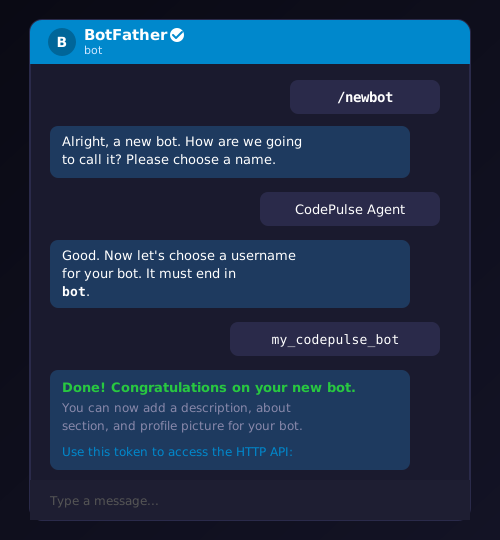
Type /newbot and send it. BotFather walks you through two prompts.
Choose a display name
BotFather asks: "Alright, a new bot. How are we going to call it? Please choose a name for your bot." This is the display name that appears in chat headers and search results. Type something descriptive like CodePulse Agent or My CodePulse Bot. This name does not need to be unique and you can change it later.
Choose a username
BotFather then asks: "Good. Now let's choose a username for your bot. It must end in bot." This is the unique handle that identifies your bot on Telegram. Type something like my_codepulse_bot or yourname_codepulse_bot. The username must end with bot and cannot contain spaces. If your first choice is taken, try adding your name or a number.
Copy your bot token
When BotFather accepts both values, it responds with a congratulations message and your HTTP API token. The token looks like this:
7123456789:AAHxxxxxxxxxxxxxxxxxxxxxxxxxxx
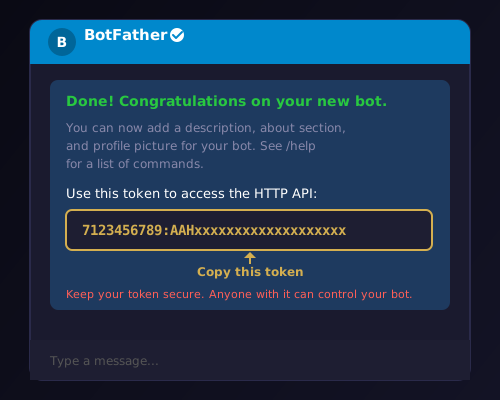
Copy this token immediately and store it somewhere safe. This is the value that goes into the Bot Token field in CodePulse. Anyone with this token can control your bot, so treat it like a password.
Step 3: Find Your Telegram Chat ID
The bot token tells CodePulse how to send messages. The Chat ID tells it where to send them. Your Chat ID is a numeric identifier unique to your Telegram account. It is not your username and it is not your phone number.
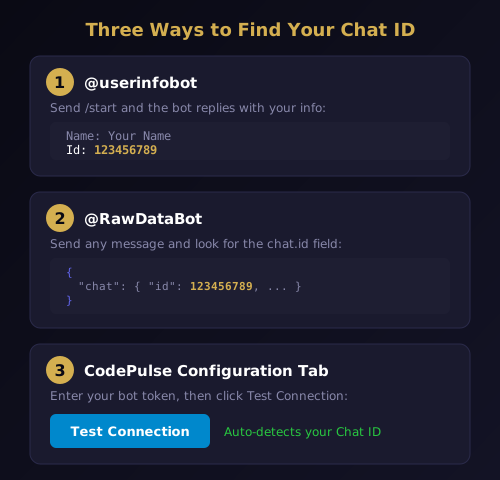
There are three reliable ways to find it.
Method 1: Use @userinfobot
Search for @userinfobot in Telegram and open the chat. Send /start or any message. The bot immediately replies with your account details, including a line that says Id: followed by a number like 123456789. That number is your Chat ID.
Method 2: Use @RawDataBot
Search for @RawDataBot in Telegram. Send any message. The bot replies with a JSON structure containing detailed information about your message. Look for the "chat" object and find the "id" field inside it. That numeric value is your Chat ID.
Method 3: Use CodePulse's test connection
If you have already entered your bot token in CodePulse's Configuration tab, you can click Test Connection. CodePulse will attempt to detect your Chat ID by checking for recent messages sent to your bot. This method requires that you have already sent at least one message to your new bot (covered in Step 4).
Copy your Chat ID. It goes into the Chat ID field in CodePulse.
Step 4: Activate Your Bot and Configure CodePulse
Before entering your credentials in CodePulse, you must complete a critical step that trips up most first-time users. Go back to Telegram search and find your newly created bot by its username (the one ending in bot). Open the chat and tap Start at the bottom, or type /start and send it.
This action tells Telegram that you consent to receive messages from this bot. Telegram requires this explicit opt-in before a bot can send messages to a user. Without it, the bot's API calls to your Chat ID will be rejected and you will see "chat not found" errors in CodePulse.
You only need to do this once. After you send /start, the bot can message you indefinitely until you block it.
Enter your credentials in CodePulse
You now have everything you need: a bot token and a Chat ID. Time to connect them to CodePulse.
Open the CodePulse panel on your machine. Navigate to the Configuration tab. You will see a Telegram section with two required fields.
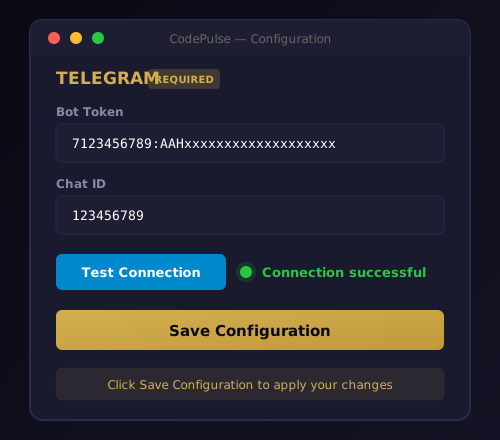
Paste your bot token into the Bot Token field. It should follow the format number:alphanumeric with a colon separating the two parts. Paste your Chat ID into the Chat ID field. It should be a plain number with no spaces or special characters.
Click Test Connection. CodePulse sends a test message through your bot to your Chat ID. Check Telegram. If you see the test message appear in your bot's chat, the connection is working.
Click Save Configuration to persist your settings. Then navigate to the Dashboard and click Start Service. CodePulse launches and sends a confirmation message to Telegram. You should see a "CodePulse Online" notification appear in your bot's chat.
From here, you are ready to start a Claude Code session and manage it entirely from Telegram. The getting started guide covers how to run your first session, and the approval pipeline article explains how permission requests work.
Securing Your Bot and Troubleshooting Common Issues
Your bot token is a credential. Treat it accordingly.
Keep the token private
Never paste your bot token in public repositories, forum posts, or shared documents. Anyone who has the token can send messages as your bot. CodePulse stores the token in your local .env file and transmits it only to Telegram's official API endpoint (api.telegram.org). It is never sent to CodePulse servers because there are no CodePulse servers. That is the point of a local-first architecture.
Restrict admin access
In CodePulse's Configuration tab, add your Chat ID to the Admin User IDs list. This ensures that only messages from your Telegram account are processed as commands. Without this restriction, anyone who discovers your bot's username could send it messages, though they would not see your sessions or receive your notifications.
Revoke a compromised token
If you accidentally expose your bot token, open BotFather in Telegram and type /revoke. Select the affected bot. BotFather invalidates the old token and issues a new one. Update the new token in CodePulse's Configuration tab and click Save. The old token stops working immediately.
Bot token format reference
A valid bot token always follows this structure: a numeric bot ID (typically 10 digits), a colon, and an alphanumeric string (35 characters). If the field shows a format error, double-check that you copied the entire token without leading or trailing spaces.
Common setup issues and their fixes
Even with a straightforward setup, a few issues come up repeatedly.
"Chat not found" error. This is the most frequent problem. It means you skipped the /start step above. Go to Telegram, find your bot, and send /start. Then retry the Test Connection in CodePulse. The error resolves immediately.
"Unauthorized" error. The bot token is either incorrect or has been revoked. Open BotFather, type /mybots, select your bot, and check its token. If you regenerated the token at any point, the old one is invalid. Copy the current token and update CodePulse.
Test message sent but not received. Verify that your Chat ID is correct. The most common mistake is copying a group ID or channel ID instead of your personal Chat ID. Use @userinfobot to confirm your personal ID. Also check that you are looking at the correct chat in Telegram. The message appears in your bot's chat, not in BotFather's chat.
Bot token field shows a validation error. Make sure the token follows the exact format: number:alphanumeric. There should be no spaces before or after the token, no newline characters, and no quotation marks. If you copied the token from a messaging app, invisible formatting characters may have been included. Try typing the token manually or pasting it into a plain text editor first to strip formatting.
Messages arrive but buttons do not work. This typically means the CodePulse service is not running. Buttons generate callback queries that CodePulse must be online to receive and process. Check that the service is started from the Dashboard. If the service crashed, the logs in the Dashboard will show the error. The Genius Supervisor and AI commit review features both rely on active callback processing.
What Your Telegram Bot Unlocks
With your Telegram bot connected, CodePulse transforms from a local monitoring tool into a full remote control system. Your bot delivers permission request cards with Allow, Deny, and Instruct buttons. It sends AI commit reviews that analyze every commit before it ships. It forwards Claude Code's questions and lets you respond with text or voice messages.
If you upgrade to Premium, the Genius Supervisor adds an intelligence layer that auto-answers routine questions, classifies requests by risk level, and learns your approval patterns over time. All of this communication flows through the bot you just created.
The five minutes you spent in BotFather just gave you a private, encrypted, cross-platform command channel to your AI coding agent. No servers to maintain, no dashboards to check, no accounts to create. Just Telegram and CodePulse.
Ready to put your new Telegram bot to work? Download CodePulse and connect it in under two minutes. The free tier includes the full approval pipeline, real-time notifications, and commit review. Upgrade to Premium to unlock the Genius Supervisor, auto-approve pattern learning, and voice input. If you want to understand why we built CodePulse around Telegram in the first place, that story explains the reasoning behind every design decision.