Connecting a Telegram bot to a desktop application requires two credentials: a bot token from BotFather and your numeric Telegram User ID. The token is straightforward — BotFather sends it in a chat message. The User ID is not. It does not appear anywhere in the Telegram interface. You need to message a third-party bot like @userinfobot, or call the Telegram API manually, or parse raw JSON from a getUpdates response. Then you need to move both values from your phone to your desktop. Most people email themselves, use a clipboard sync app, or type 46 characters by hand.
This is the setup experience for every Telegram-integrated tool on the market. It works, but it feels like connecting a printer in 2005 — technically possible, unreasonably tedious. CodePulse's QR pairing changes that. You scan a code, paste your token into a form on your phone, tap a deep link, and both fields auto-fill on your desktop. Thirty seconds, no third-party tools, nothing leaves your WiFi network.
The manual setup problem every developer knows
If you have followed our Telegram bot setup guide, you know the current process. Open BotFather on your phone, create a bot, copy the token. Switch to your desktop, open the CodePulse Config Panel, and paste the token into the Bot Token field. Two steps so far.
The User ID is where things break down. Telegram does not show your numeric ID anywhere in the app. You need to open a separate bot — usually @userinfobot or @getmyid_bot — send it a message, and read the number it replies with. Then you copy that number, transfer it to your desktop, and paste it into the second field. Four steps minimum, assuming nothing goes wrong.
This process has three failure points that we see constantly in support requests. First, users paste the bot token with leading or trailing whitespace copied from Telegram's message bubble. Second, they confuse the bot token (which contains a colon) with the bot username (which does not). Third — and this is the most common — they enter their Telegram @username instead of their numeric User ID, because Telegram never surfaces the numeric ID in any obvious place.
Every one of these failures results in a "bot not responding" experience where the user assumes CodePulse is broken. The credentials are wrong, but the error is invisible because Telegram's API silently ignores messages sent to invalid chat IDs.
QR pairing eliminates the copy-paste chain
The design goal was simple: remove every manual transfer step between the phone and the desktop. Both values — bot token and User ID — should arrive on the desktop automatically after a single physical action: pointing a phone camera at the screen.
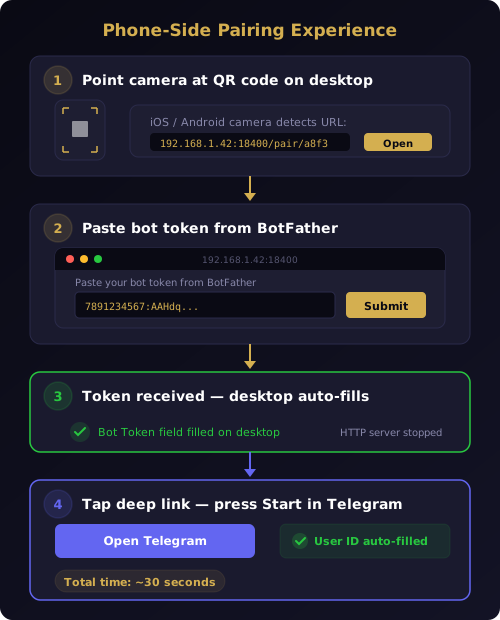
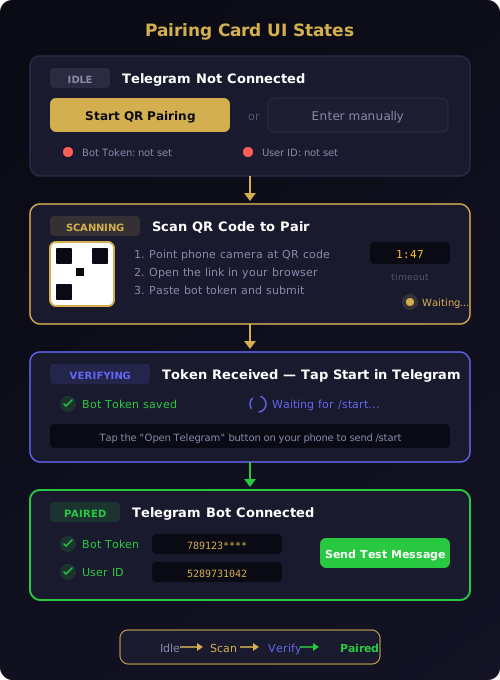
Here is what the flow looks like. You open the CodePulse Config Panel and navigate to the Telegram section in Configuration, or if this is your first time, the setup wizard opens automatically. A QR code appears on screen. You scan it with your phone's camera — no app install required, just the native camera. Your phone opens a small web page served directly from your desktop over your local network. You paste your bot token into the form (one tap from BotFather's message) and submit. The token arrives on your desktop instantly. The form then shows a button that opens Telegram and sends /start to your bot. When you tap it, CodePulse detects the message, extracts your User ID from the Telegram API, and fills the second field automatically.
Both credentials are configured. The QR code disappears. A green "Paired" confirmation takes its place. No cloud server relayed your credentials. No third-party bot looked up your User ID. No character was typed on the desktop keyboard.
How the two-phase architecture works
The pairing uses a two-phase design because a single mechanism cannot securely deliver both credentials. The bot token is 46 characters and is a secret — it grants full control of your Telegram bot. The QR code cannot contain it. Telegram's deep link payload is limited to 64 characters, but more importantly, QR codes are scannable by anyone in visual range. Embedding a bot token in a QR code would be like taping your API key to your monitor.
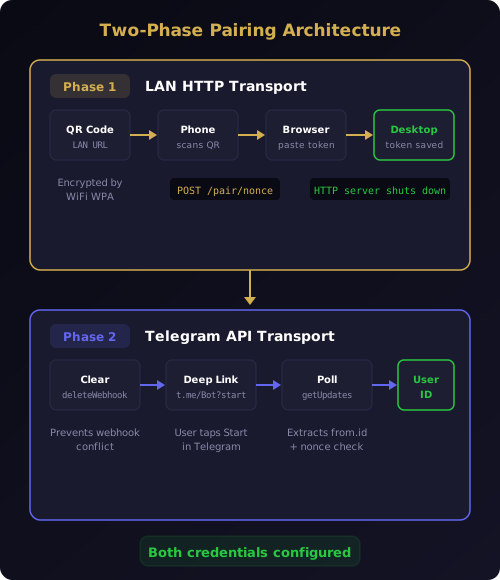
Phase 1 spins up a temporary HTTP server on your desktop, bound to your local network IP address. The QR code contains only this LAN URL — something like http://192.168.1.42:18400/pair/a8f3b9c1. Your phone connects to the page over WiFi, you paste the bot token, and it is POSTed back to your desktop over the local network. The HTTP server shuts down immediately after receiving a valid token.
Phase 2 begins once the token is known. CodePulse calls Telegram's deleteWebhook API to clear any existing webhook configuration, then starts polling getUpdates. Meanwhile, the form on your phone shows a deep link button: t.me/YourBot?start=NONCE. When you tap it, Telegram opens and sends /start to your bot. CodePulse's polling picks up the message, extracts your numeric User ID from the message.from.id field, verifies the nonce matches, and fills the User ID field on the desktop.
Two phases, two transports, two credentials — each delivered through the channel best suited for it. This is the same kind of architectural thinking behind the local-first design that keeps all your data on your machine.
Phase 1 — LAN HTTP server delivers the bot token
When you click "Start QR Pairing" in the Config Panel, CodePulse performs three operations in rapid sequence. It generates a cryptographically random nonce. It starts an HTTP server on a free port, bound to your machine's local network IP. And it encodes the URL — IP, port, and nonce — into a QR code displayed on screen.
The nonce serves two purposes. It prevents replay attacks — a previously scanned QR code cannot be reused. And it ensures that only someone who scanned the current QR code can open the pairing page. The server rejects any request without the correct nonce in the path.
What the QR code contains
The QR code encodes a plain HTTP URL. Nothing else — no token, no secret, no metadata. The URL points to your desktop's LAN IP address on a random high port, with the nonce as a path segment. When your phone's camera recognizes the QR code, it offers to open the URL in your default browser. One tap.
On iOS, the native camera app handles QR codes automatically since iOS 11. On Android, native QR support varies by manufacturer and OS version — most devices running Android 9 or later support it natively. For devices without built-in QR scanning, the pairing screen displays a copyable LAN URL below the QR code as a fallback. You can type it into your phone browser manually or use any QR scanner app you prefer.
The phone-side experience
The page that opens on your phone is a single-purpose form. A text field, a paste button, and a submit button. The heading says "Paste your bot token from BotFather." If you just created your bot, the token is the last message in your BotFather chat — tap and hold to copy, then paste into the field.
When you submit, the token is POSTed over your local WiFi to the CodePulse HTTP server running on your desktop. The server validates the token format (numeric bot ID, colon, alphanumeric string), stores it securely, and sends back a success response. The phone page transitions to Phase 2, showing the Telegram deep link button. On the desktop, the Bot Token field fills in and a checkmark appears.
The HTTP server shuts down immediately after receiving a valid token. It exists for the duration of the pairing — typically under 20 seconds — and serves exactly one page to exactly one client. If no valid token arrives within two minutes, the server times out and the QR code refreshes with a new nonce.
Phase 2 — Telegram deep link captures your User ID automatically
With the bot token in hand, CodePulse can now talk to the Telegram API directly. But before it can receive messages, it handles a subtle infrastructure detail: Telegram allows only one consumer per bot token. If a webhook is registered from a previous setup, getUpdates returns nothing. CodePulse calls deleteWebhook first to clear any prior configuration, then begins polling getUpdates with a 30-second long-poll timeout.
The form on your phone now shows a single button: "Open Telegram and press Start." This button is a Telegram deep link — t.me/YourBot?start=NONCE — that opens the Telegram app, navigates to your bot's chat, and pre-fills the /start command with a verification payload. You tap Start in Telegram, and that is the last action required on your phone.
On the desktop, CodePulse's polling receives the /start message within milliseconds. It reads message.from.id — your numeric Telegram User ID — and verifies that the deep link payload matches the expected nonce. If the nonce matches, the User ID field fills in, the pairing state transitions to "Paired," and polling stops. The entire flow that powers the Telegram bridge is now configured.
No third-party bot. No JSON parsing. No manual ID lookup. The Telegram API delivers the User ID directly to CodePulse as part of a message you were going to send anyway.
Why the bot token never appears in the QR code
Every design decision in the pairing flow stems from one constraint: the bot token is a secret that must never be broadcast visually or stored in a scannable medium.
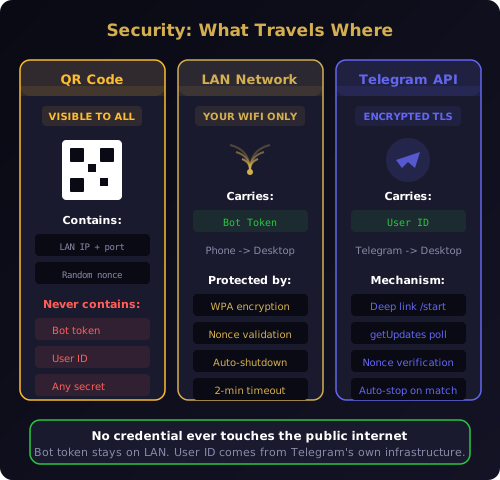
A QR code is a public broadcast. Anyone who can see your screen can scan it — a colleague walking past, a participant on a video call, a screenshot shared by accident. If the QR code contained the bot token, scanning it would grant full control of your Telegram bot: reading all messages, sending messages to any user, modifying the bot profile, and intercepting every notification CodePulse sends.
Instead, the QR code contains only a LAN URL. This URL is reachable only from a device on the same WiFi network, and only during the brief window the HTTP server is running. Even if someone captures the URL, they see an HTML form — not a credential. The actual bot token travels from your phone to your desktop over your local network, encrypted by your router's WPA layer, never touching the public internet.
This approach mirrors the same principle behind the Claude Code hook system: keep the control plane local. Your hooks fire on your machine. Your pairing happens on your network. Your credentials stay in your hands.
The manual fallback is always one click away
QR pairing is the fastest path, but it is not the only path. Every screen that shows the QR code also includes an "Or enter manually" collapsible section. Click it, and the familiar text fields appear — Bot Token and User ID — exactly as they work today.
This matters for three scenarios. First, some network configurations block device-to-device LAN traffic — corporate firewalls, guest WiFi isolation, VPN split tunnels. If your phone cannot reach your desktop's LAN IP, the QR flow will not work. The manual fields let you continue without troubleshooting network issues.
Second, some developers prefer typing. They have the credentials in a password manager and want to paste them directly on the desktop. The manual path respects that workflow without penalty.
Third, if you are re-pairing after a bot token rotation, you might already have the new token on your desktop clipboard from BotFather Web. One paste into the manual field is faster than scanning a QR code.
Both paths produce the same result: a configured Telegram connection that enables the full approval pipeline with pattern learning, AI-powered commit review on every push, and the Genius Supervisor that answers routine questions on your behalf. The getting started guide covers both paths in detail.
What 30-second pairing means for your workflow
The Telegram connection is the gateway to everything CodePulse does remotely. Without it, CodePulse still monitors Claude Code through its hook system and logs every event locally — but you cannot approve tool permissions from your couch, review commits from a coffee shop, or steer your agent while walking to a meeting. The Telegram bot is what turns a local monitoring tool into a remote command center.
Every minute of setup friction is a minute where a new user might close the app and move on. The manual flow took most users three to five minutes — not because any single step was hard, but because the context-switching between phone and desktop, between BotFather and Config Panel, between Telegram and a third-party ID bot, adds up. QR pairing compresses that entire sequence into a 30-second flow with zero context switches. Your phone stays on the pairing page until it is done. Your desktop auto-fills both fields without a single keystroke.
For teams evaluating CodePulse, this changes the onboarding math entirely. Instead of a setup document with screenshots and numbered steps, you share a download link. The Windows installer completes in under two minutes. The QR pairing completes in under 30 seconds. From download to first Telegram notification: less than three minutes.
That is the standard we are building toward. Not "easy to set up for a developer tool." Easy to set up, full stop. The same interaction model that WhatsApp Web, Telegram Web, and Signal Desktop already trained billions of users to expect: scan a code, and you are connected.
Ready to connect your Telegram bot without the copy-paste dance? Download CodePulse and scan your way to a paired bot in 30 seconds. The free tier includes the full Telegram bridge with the approval pipeline — upgrade to Premium to unlock the Genius Supervisor, AI commit review, and voice input.