You have Claude Code running on your machine. It writes code, runs tests, and edits files -- but the moment you step away from your desk, you lose all visibility. Permissions queue up. Commits sit waiting. Questions go unanswered. CodePulse fixes that by connecting Claude Code to your phone via Telegram, so you can approve, review, and direct your AI coding assistant from anywhere.
This guide walks you through every screen of the CodePulse installer on Windows. By the end, you will have a running CodePulse service with Claude Code hooks registered and the Config Panel ready for configuration. The entire process takes less than two minutes.
What you need before you start
Before downloading the installer, make sure you have three things ready.
Windows 10 or Windows 11. CodePulse runs on both. The installer is a standard NSIS wizard that works on any modern Windows machine. No admin privileges required -- it installs to your user profile by default.
Claude Code CLI installed. CodePulse integrates with Claude Code through its hook system. The installer auto-detects your Claude Code configuration directory. If you do not have Claude Code yet, install it first from the official documentation.
A Telegram account. CodePulse uses Telegram as its control plane -- every notification, approval request, and commit review arrives as a Telegram message. You do not need to set up the Telegram bot during installation. You can configure it later from the Config Panel, or follow our Telegram bot setup guide when you are ready.
Download the installer
Head to the download page or go directly to the latest release on GitHub. The installer is a single file named CodePulse-Setup-2.3.4.exe (approximately 30 MB).
The installer is signed with an EV code certificate, which means Windows SmartScreen should not show any warnings. If you downloaded from an unofficial source and see a warning, re-download from the official page. For more details on handling Chrome or Windows security prompts, see our safe download guide.
Double-click the installer to begin.
Step 1: Welcome and license agreement
The installer opens with a welcome screen introducing CodePulse and its core capabilities: real-time development intelligence, approval workflows, and AI-powered commit reviews.
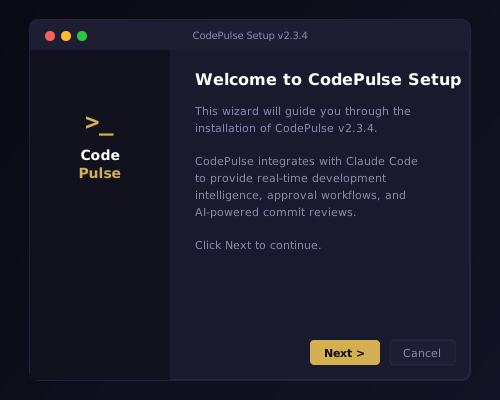
Click Next to proceed to the license agreement. The agreement covers the terms for both the Free and Premium tiers, Claude Code integration, data handling, and subscription details. Read through it and click I Agree to continue.
The key points: CodePulse stores all data locally on your machine using a local-first architecture. No cloud sync, no third-party storage. Your code never leaves your computer. The only network calls are to the Telegram API (for notifications) and to the CodePulse license server (for Premium features).
Step 2: Activate your license
The next screen asks for your license key. You have two options here.

Option A: Enter a Premium license key. If you purchased a CodePulse subscription, enter your key in the format CP-XXXX-XXXX-XXXX. Click Validate and the installer contacts the license server to confirm your key. A green message confirms: "License validated! Tier: premium." Premium unlocks the Genius Supervisor (AI auto-answer for routine questions), AI commit review (security scan on every commit), and nine other features.
Option B: Continue with the Free tier. Check the box labeled "Continue with Free tier" and click Next. The Free tier includes 50 messages per day, basic approval workflows, and all core monitoring features. You can upgrade to Premium at any time from the Config Panel or the pricing page.
If your internet connection is unavailable during installation, the installer offers a graceful fallback: continue with Free tier and validate your key later when the service starts.
Step 3: Claude Code detection
This is where CodePulse finds your Claude Code installation. The installer searches three common locations automatically:
%USERPROFILE%\.claude(most common)%LOCALAPPDATA%\Claude%APPDATA%\Claude

When the directory is found, you see a green confirmation: "Claude Code directory: Found" with the full path displayed. The installer validates the directory by checking for a settings.json file inside it.
If auto-detection fails -- for example, if you installed Claude Code in a non-standard location -- click Browse to manually select the directory. The installer needs to know where Claude Code stores its configuration so it can register the hook scripts that connect the two systems.
If the directory does not exist yet, the installer asks if you would like to create it. This is safe to do -- Claude Code will use the directory the next time it starts.
Step 4: Choose your installation directory and components
The directory selection screen lets you choose where CodePulse stores its files. The default is %LOCALAPPDATA%\CodePulse -- a standard user-level installation that does not require administrator privileges.

Below the directory selection, you see a list of components. Here is what each one does:
Hook Scripts (required). These are the PowerShell scripts that Claude Code calls on every lifecycle event. They are the bridge between Claude Code and CodePulse. You cannot uncheck this -- it is the core integration.
Settings Registration (required). This writes the hook configuration into Claude Code's settings.json file, registering CodePulse for all seven lifecycle events: PreToolUse, PostToolUse, PreUserMessage, PostUserMessage, Notification, Stop, and SubagentStop.
CODEPULSE_HOME Environment Variable (recommended). Sets a system environment variable so the hook scripts can find the CodePulse installation directory. Checked by default. Leave it checked unless you have a specific reason to manage environment variables manually.
Start Menu Shortcuts (optional). Creates a CodePulse group in the Start Menu with shortcuts for launching the Config Panel, opening the configuration, and running the uninstaller. Checked by default.
Desktop Shortcut (optional). Places a CodePulse icon on your desktop. Unchecked by default -- check it if you want quick access from the desktop.
Click Next to proceed. The installer will ask about Telegram bot configuration on the next screen. If you have not set up a Telegram bot yet, check "Skip for now" and configure it later from the Config Panel. For a complete walkthrough of the Telegram setup, see our Telegram bot setup guide.
Step 5: Installation and completion
Click Install and watch the progress bar fill. The installer performs six operations in sequence:
- Stops any running CodePulse processes (safe for upgrades)
- Extracts all files to your chosen directory
- Runs the installation orchestrator (hooks registration, environment setup)
- Writes registry entries for Add/Remove Programs
- Creates shortcuts (if selected)
- Generates the uninstaller
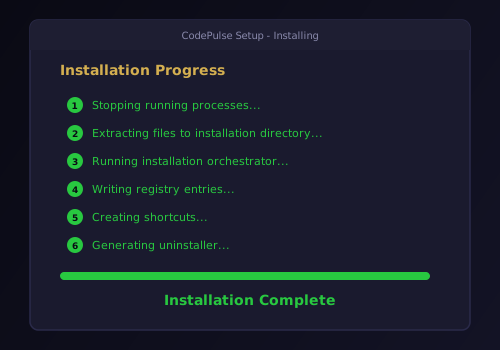
The entire process takes about fifteen seconds. When the progress bar reaches 100%, the completion screen appears with a simple message: "CodePulse has been installed successfully."
Click Finish to close the wizard. CodePulse is now installed, hooks are registered, and the service is ready to start.
Your first look at the Config Panel
Find CodePulse in your Start Menu (or use the desktop shortcut if you created one) and launch it. The Config Panel is the command center for everything CodePulse does.
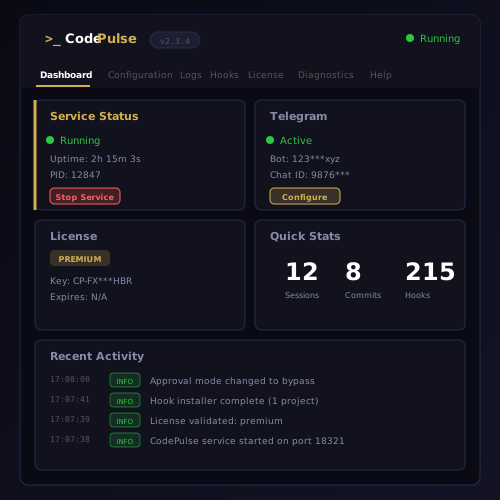
The Header at the top shows the CodePulse version, a green or red status indicator (Running/Stopped), and a Start/Stop button. Click Start to launch the CodePulse service for the first time.
The Dashboard tab gives you a snapshot of your system:
- Service Status -- whether the service is running, its uptime, and process ID. The Start/Stop button controls the service lifecycle.
- Telegram -- shows your bot token and chat ID status. If you skipped Telegram setup during installation, this will show "Inactive" with a Configure button that takes you to the Configuration tab.
- License -- displays your current tier (Free or Premium), license key, and expiration date. The Upgrade button links to the pricing page if you are on the Free tier.
- Quick Stats -- Sessions Today, Commits Reviewed, and Hooks Triggered. Sessions and Commits are Premium features -- Free tier users see a lock icon with an Upgrade link.
Understanding the seven tabs
The Config Panel has seven tabs across the top. Here is what each one does and when you will use it.
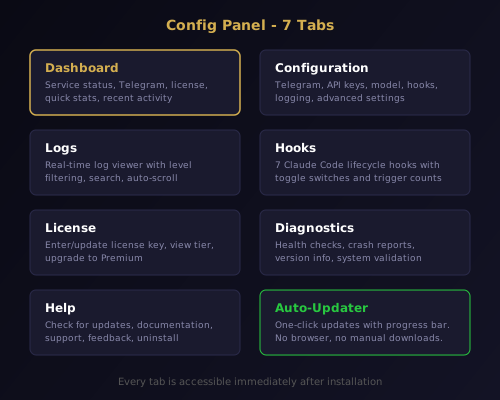
Dashboard. Your home screen. Service status, Telegram connection, license tier, quick stats, and recent activity log. Check this tab to verify everything is running.
Configuration. The settings panel where you configure Telegram credentials, API keys, Claude model selection, hook events, logging preferences, and advanced options like approval timeout and debug mode. This is where you complete the Telegram setup if you skipped it during installation.
Logs. A real-time log viewer with filtering by level (Debug, Info, Warn, Error), text search, and auto-scroll. Use this to monitor what CodePulse is doing and to diagnose any issues.
Hooks. Shows all seven Claude Code lifecycle hooks with toggle switches to enable or disable each one. Displays activation status and trigger counts. Use this to customize which events CodePulse intercepts.
License. Enter or update your license key, view your current tier and features, and access the upgrade page. When you enter a key and click Save, the service validates it against the license server and activates Premium features immediately.
Diagnostics. System health checks, crash reports, and version information. The health panel runs automated checks on hook registration, service connectivity, and configuration validity. Use this when something is not working as expected.
Help. Check for updates (with the in-app auto-updater), access documentation, get support, and send feedback. The update checker downloads, verifies, and installs new versions without opening a browser. Also contains the uninstall option.
What happens after installation
With the service started, CodePulse is silently monitoring Claude Code through the registered hooks. Every time Claude runs a command, edits a file, or finishes a task, the hook fires and CodePulse processes the event.
If you have configured Telegram, you will start receiving notifications on your phone. Tool approvals appear as cards with Approve and Deny buttons. Commit reviews show security findings with one-tap actions. The approval pipeline learns your patterns -- after approving the same tool three times, it auto-approves future calls matching that pattern.
If you have not configured Telegram yet, the service still runs and logs events. You can monitor everything from the Logs tab and set up Telegram whenever you are ready using the bot setup guide.
Every future update is handled by the built-in auto-updater. Right-click the tray icon or go to the Help tab and click Check for Updates. The updater downloads, verifies the ed25519 signature, and installs silently. No more manual downloads, no more wizard clicks. The version you just installed is the last one you install manually.
Troubleshooting common issues
Claude Code directory not found. If the installer cannot auto-detect your Claude Code directory, it means Claude Code was installed in a non-standard location or has not been initialized yet. Run claude --version in a terminal to confirm Claude Code is installed, then check %USERPROFILE%\.claude for the configuration directory.
Service does not start. Open the Diagnostics tab and run a health check. Common causes: another process using port 18321 (the approval bridge port), or the .env file has a syntax error. Check the Logs tab for the specific error message.
SmartScreen warning on download. The installer is signed with an EV code certificate, but new certificates may need to build reputation with Windows. Click "More info" then "Run anyway." Re-downloading from the official download page ensures you have the authentic file. For a detailed walkthrough, see the safe download guide.
Hooks not triggering. Go to the Hooks tab and verify that the hooks you need are enabled (green toggle). Then check the Diagnostics tab -- the health check validates hook registration in Claude Code's settings.json.
Download CodePulse now and have it running in under two minutes. Check the full feature list to see what you unlock with Premium, or explore the pricing plans to get started with the Genius Supervisor and AI commit review.